In short
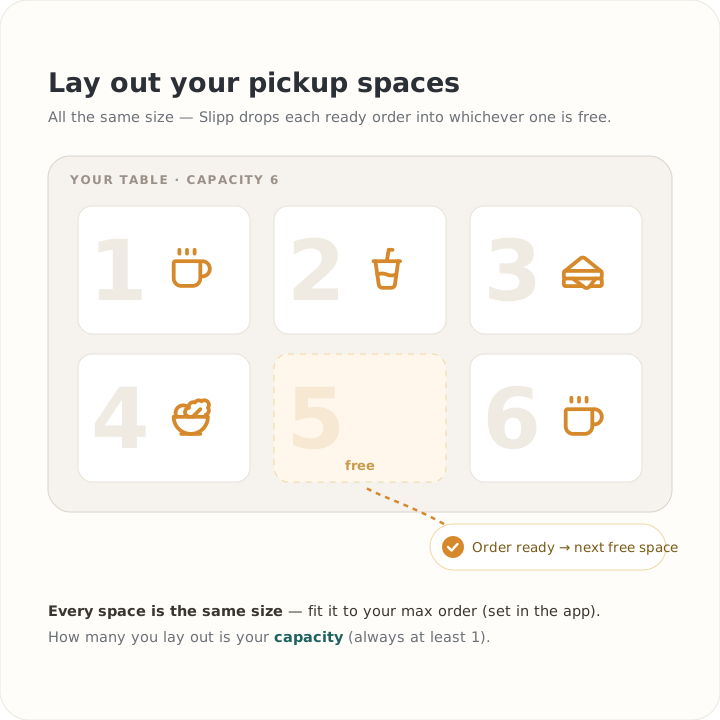
Arrange some space in your booth to place orders once they are ready for pickup - for example, a table you divide into roughly equal squares with a bit of tape.
The number of spaces is your capacity. Once every space is filled with an order waiting to be collected, Slipp pauses new orders until a space frees up.
Number your spaces so you can match each one to the right order - a permanent marker, small labels, whatever you have. Just make sure the numbering survives a bit of spillage during service.
What a pickup space actually is
A pickup space is a numbered physical spot on your counter or table where a finished order waits for its owner to collect it. Each space holds exactly one order.
When an order is ready, Slipp assigns it to whichever space is free - by availability, never by size. The number on the physical spot matches the number on your live order board, so your team and the attendee always find the same order.
- One order per space - nothing shared, nothing stacked.
- Assigned by what is free, not by how big the order is.
- The spot number always matches the board number.
Every space the same size
Because any order can land in any space, every space has to be able to hold any order. So make them all identical - one uniform size, each big enough for a single order. Do not mix big and small spots: a large order does not get a bigger space, it just takes the next free one.
Max items per order - your size lever
Here is the trick that keeps everything tidy: you do not size your spaces for some imagined giant order. Instead you cap how big an order can be.
The Max items per order setting (in Operations, default 10, adjustable 1–50) limits the total number of items in any single order. Set it to what comfortably fits one of your spaces. An attendee who wants more simply splits into a second order - which takes a second spot. That is what keeps the whole pickup model predictable.
Capacity is how many spaces you lay out
Capacity is simply the number of uniform spaces you have set out - nothing more. You enter it in Operations (the control accepts 1–500). There is no zero: even the smallest setup has at least one space. More spaces means more orders can wait at once; fewer means orders pause sooner when you are slammed.
Pickup time, set right beside it, is how long an order may sit in its space before you would expect it collected. Set it to a realistic window for your crowd.
Number them so the numbers survive service
Your spaces need durable numbers that match the board and survive spills, heat, and a busy counter. Tape and a permanent marker, laminated cards, painter’s tape along the table edge, little clip stands - anything that will not smear. The point is simple: an attendee reads "Order 5" on their phone and finds the physical 5 instantly.
Scale it to your booth
What changes from booth to booth is the count and the absolute size of your (uniform) spaces - never a mix of sizes within one booth, and never zero spaces. Two examples to copy from:
Larger booth (food)
A fold-out table laid out as a grid of six to ten identical squares, each sized for a full tray. A higher max items per order, because each space holds more.
Smaller setup (coffee)
A short row of three or four identical, more compact spots on a heated holding surface. A lower max items per order - but still real, numbered spaces with a real capacity.
Same idea, different scale. Pick the count and size that fit your gear - then keep every space uniform.
Copy this setup
- 1 Lay out identical pickup spaces - all the same size.
- 2 Number them durably, matching your live order board.
- 3 Set capacity to how many spaces you laid out (always at least 1).
- 4 Set max items per order to what one space comfortably holds.
- 5 Set a realistic pickup time for your crowd.